

First: open Meta Ads Manager and check the Delivery column. Most Facebook ads that stop delivering trace back to one of three root causes — account or payment problems, budget and targeting setup issues, or ad review and policy violations. Identifying which bucket you’re in takes under five minutes and tells you exactly where to focus.
Here’s what to check right now:
- Delivery column status in Meta Ads Manager: look for “Active,” “In Review,” “Disapproved,” or “Limited.” Each status points to a different fix.
- Account Quality (under Business Settings): any flags, page restrictions, or identity verification requests will halt delivery entirely.
- Billing & Payments: a declined card or a hit account spending limit stops all ads immediately. Fix the payment and delivery typically resumes within minutes to a few hours.
- Ad start and end dates: a surprisingly common reason for facebook ads not working is a campaign that technically expired or hasn’t started yet.
If none of those surface an obvious issue, toggling the ad off and back on, then waiting 5–15 minutes clears transient publishing errors. If delivery still doesn’t resume, run the full diagnostic checklist below.
Key Takeaways
Most Facebook ad failures trace back to account/billing issues, pixel misconfiguration, or audience and objective mismatches — and all three are diagnosable in under 15 minutes with the right checklist.
| Point | Details |
|---|---|
| Check Delivery and billing first | The Delivery column and Billing & Payments page surface the majority of delivery failures in under five minutes. |
| Pixel errors cause silent failures | A misfiring pixel means Meta optimizes on a broken signal; verify with Test Events and Pixel Helper before scaling. |
| Audience size and objective must match | Audiences under 1,000 and conversion objectives with fewer than 50 weekly events both cause learning-limited delivery. |
| Creative fatigue compounds technical issues | Frequency above 3–4 and declining CTR signal stale creative; run a format swap test within 72 hours. |
| Envisionmarketingagency offers full-account rescue | Audits, pixel setup, campaign restructuring, and Meta escalation support are available for accounts that can’t self-resolve. |
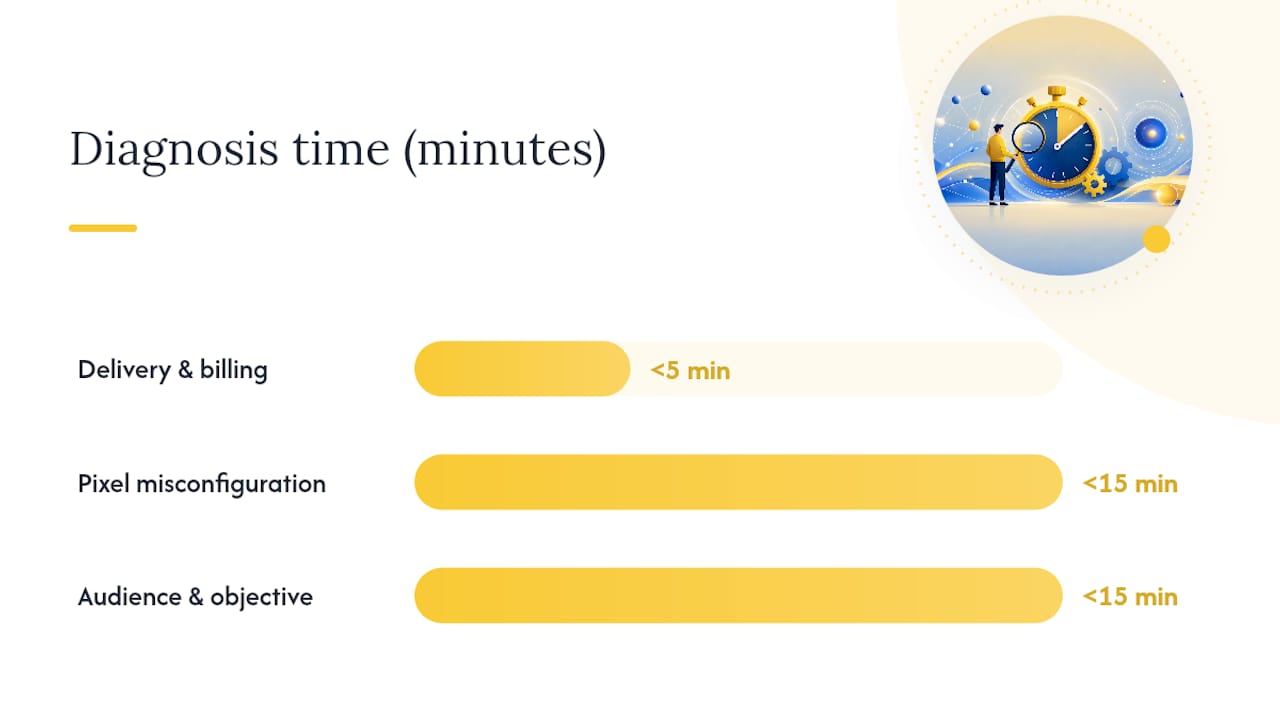
Table of Contents
- Why are my Facebook ads not working? A 15-minute diagnostic checklist
- How to read the Delivery column in Meta Ads Manager
- How to spot and fix policy violations and account restrictions
- Billing failures and account spending limits that kill delivery
- Pixel, Conversions API, and conversion event troubleshooting
- Audience, targeting, and campaign objective mismatches
- Creative fatigue, placement mismatches, and frequency problems
- How to check if Meta is down and what to do during an outage
- A 3-step recovery plan you can run in one business day
- When should you hire an agency to fix your Facebook ads?
- The pattern I keep seeing in underperforming SMB ad accounts
- Envisionmarketingagency can get your Facebook ads back on track
- Sources
Why are my Facebook ads not working? A 15-minute diagnostic checklist
Most “not delivering” ads fall into three root areas: account/payment problems, budget/bid/targeting setup issues, or ad review/policy problems. Work through these in order — account-level issues block everything downstream, so there’s no point optimizing creative if billing is broken.
-
Check Account Quality (2 minutes): Go to Business Settings → Account Quality. Look for any flags, restrictions, or pending identity verification. A single unresolved flag can suppress every campaign in the account.
-
Check Billing & Payments (2 minutes): Go to Billing & Payments in Ads Manager. Confirm your primary card is valid, no recent declines appear, and you haven’t hit your account spending limit. Outstanding invoices also pause delivery.
-
Check the Delivery column for each campaign, ad set, and ad (3 minutes): Filter by “Active” campaigns first. Look for “Active but not delivering,” “In Review,” “Disapproved,” or “Learning Limited.” Each status has a specific fix path covered in the sections below.
-
Check ad set budget, bid strategy, and schedule (3 minutes): Confirm the daily or lifetime budget is above Meta’s minimum effective threshold for your objective, the schedule isn’t set to a past date, and you’re not using a manual bid cap that’s too low to win auctions.
-
Check audience size (2 minutes): Open the ad set and look at the Audience Size meter. An audience under roughly 1,000 people often causes delivery issues. Audiences that are too narrow or heavily overlapping with other active ad sets also suppress delivery.
-
Quick pixel check (3 minutes): Open Event Manager and confirm your Meta Pixel is firing. Look for recent activity. If you see zero events in the last 24 hours and your site has traffic, the pixel is broken.
Stop and escalate if: you’ve completed all six steps and delivery still hasn’t resumed after 24 hours, or if Account Quality shows a restriction you can’t resolve through the standard appeal flow. At that point, contact Meta Business Help directly or bring in an agency.
Pro Tip: Before making any changes, export a screenshot of your current Delivery column and billing status. If you need to escalate to Meta support, those screenshots cut resolution time significantly.
How to read the Delivery column in Meta Ads Manager
The Delivery column is the fastest single diagnostic in Meta Ads Manager. It sits at the campaign, ad set, and ad level, and each status means something specific.
- Active: The ad is eligible to run. If it’s active but spending nothing, the issue is usually budget, bid, audience size, or a low-quality score.
- In Review: Meta is reviewing the ad. Most reviews complete within 24 hours, though some take longer. Don’t edit the ad while it’s in review — edits restart the review clock.
- Disapproved: The ad violated a policy. Click the status to see the specific reason, then either edit the ad or file an appeal.
- Learning: The ad set is in the learning phase, gathering data to optimize delivery. This is normal for new or recently edited ad sets. Expect higher costs and variable delivery for roughly 50 optimization events.
- Learning Limited: Meta can’t gather enough data to exit the learning phase. Common causes: too-small audience, too-low budget, or a conversion event that fires rarely.
- Scheduled: The campaign hasn’t reached its start date yet. Check time zones — a campaign set to start at 12:00 AM Pacific looks like it’s running to someone in Eastern time.
Recent edits reset the learning phase. The practical rule: make one change at a time and give it 48–72 hours before judging results.
To filter Ads Manager efficiently, add the Delivery, Results, Cost per Result, Frequency, and Relevance Score columns to your default view. Use the “Delivery” filter dropdown to isolate disapproved or limited ads across the whole account in one click.
How to spot and fix policy violations and account restrictions
Policy violations are one of the most common reasons facebook ad campaigns fail without warning. The fix depends on whether the issue is at the ad level (a single disapproval) or the account level (a restriction).
Where to check:
- Ad-level disapprovals: Click the red “Disapproved” status in the Delivery column. Meta shows the specific policy violated and often a link to the relevant policy page.
- Account-level restrictions: Go to Business Settings → Account Quality. Restrictions here affect every campaign in the account.
Common disapproval reasons and fixes:
-
Personal attributes: Ads that imply knowledge of a user’s personal characteristics (health condition, financial status, religion) get flagged. Rewrite to address the product benefit, not the person’s situation. Instead of “Struggling with debt?” try “Our financial planning service helps you build a clear budget.”
-
Health and wellness claims: Absolute claims (“cures,” “eliminates,” “guaranteed results”) trigger automatic disapproval. Replace with outcome-oriented language that doesn’t promise a medical result.
-
Prohibited content categories: Certain industries (financial products, housing, employment, credit) require Special Ad Category selection. Running a housing ad without selecting the Special Ad Category causes disapproval and limits targeting options.
-
Low-quality landing page: Meta reviews the destination URL. Pages with excessive pop-ups, misleading content, or slow load times can cause ad disapproval even when the ad copy itself is clean.
Appeal flow:
- Click “Request Review” next to the disapproved ad.
- If the first review upholds the disapproval, use the “Disagree with Decision” option to escalate to a human reviewer.
- Realistic timeline: first-level reviews typically complete within 1–3 business days. Escalated reviews can take up to a week.
Account-level restrictions require more. Identity verification through Meta’s official process is often the first step. If the restriction involves repeated policy violations, you may need to submit a formal appeal through Meta Business Help, including a written explanation and supporting documentation. Don’t create a new ad account to work around a restriction — Meta links accounts by payment method and device, and doing so can result in a permanent ban.
Billing failures and account spending limits that kill delivery
A failed payment is the fastest way to stop every ad in your account simultaneously. Meta suspends delivery the moment a charge fails, and it doesn’t always send a clear notification.
Billing checklist:
- Open Billing & Payments in Ads Manager and check the “Transaction History” tab for any failed charges.
- Confirm your primary card hasn’t expired and the billing address matches what your bank has on file.
- Check whether your bank has blocked the Meta charge — international or recurring charges sometimes trigger fraud holds.
- Look at your Account Spending Limit. This is a manual cap you (or a previous account manager) may have set. When you hit it, all delivery stops. Reset or raise it under Billing & Payments → Account Spending Limit.
- Check for outstanding invoices if your account is on monthly invoicing. Unpaid invoices pause delivery until settled.
After fixing a billing issue, delivery typically resumes within minutes to a few hours. Meta’s system runs payment retries automatically, but you can also manually trigger a retry by updating the payment method.
Pro Tip: Add a verified backup payment method in Billing & Payments and set your automatic payment threshold low enough that charges process frequently rather than accumulating into one large charge your bank might flag.
Pixel, Conversions API, and conversion event troubleshooting
When your ads are delivering but facebook ads are not converting, the pixel is usually the first place to look. A broken or misconfigured pixel means Meta is optimizing for an event it can’t see, which is roughly equivalent to navigating with a broken compass.
How to verify pixel health:
- Open Events Manager in Meta Business Suite. Your pixel should show recent activity. If the last event was days ago and your site has traffic, the pixel isn’t firing.
- Install the Meta Pixel Helper Chrome extension and visit your site. It shows which events fire, whether they’re duplicated, and any configuration errors.
- Use the “Test Events” tool in Events Manager to fire test events in real time and confirm they register.
Common symptoms and fixes:
| Symptom | Likely Cause | Fix |
|---|---|---|
| Clicks in Ads Manager, zero conversions | Pixel not firing on thank-you/confirmation page | Add pixel base code and Purchase/Lead event to the confirmation page |
| Conversions on-site but not in Ads Manager | Attribution window mismatch or Conversions API not connected | Switch to 7-day click attribution; connect Conversions API to pass server-side events |
| Duplicate conversion counts | Pixel fires twice (both browser and server-side without deduplication) | Add event_id deduplication parameter to both pixel and Conversions API calls |
| Events firing but wrong event type | Wrong event code on the page (e.g., ViewContent instead of Purchase) | Audit each page’s event code against your conversion funnel map |
Reporting delays are real. Meta’s attribution window means a conversion that happened today may not appear in Ads Manager for up to 24–72 hours depending on your window setting. Don’t pause a campaign because conversions look low — check the “Compare Attribution Windows” view in Ads Manager before making that call.
If you’re running Conversions API alongside the browser pixel, deduplication is non-optional. Without it, Meta counts the same conversion twice, inflates your reported results, and then optimizes toward a signal that doesn’t reflect reality.
Audience, targeting, and campaign objective mismatches
Wrong audience setup is a quieter killer than billing failures, but it’s just as effective at making your facebook ad campaigns fail. The two most common problems: audiences that are too narrow to deliver, and campaign objectives that don’t match what you actually want.
Audience size:
Meta needs a large enough pool to find the right people. An audience under roughly 1,000 people often causes delivery issues because there aren’t enough users to bid against. For cold traffic campaigns, aim for at least 500,000 to 1 million in the US market. For retargeting, 1,000–50,000 is workable, but below 1,000 you’ll see erratic delivery.
- Expand narrow audiences by loosening age ranges, adding related interests, or switching to Advantage+ Audience and letting Meta find the best fit.
- Use the Audience Overlap tool (under Audiences in Business Manager) to check whether two active ad sets are competing against each other for the same users. Significant overlap means you’re bidding against yourself.
- For retargeting, check whether your exclusion lists are too aggressive. A 30-day website visitor audience with a 60-day purchaser exclusion can result in a near-empty audience.
Objective and optimization event mismatches:
If you’re running a Conversions campaign optimized for Purchase but your pixel fires fewer than roughly 50 purchase events per week, Meta doesn’t have enough signal to exit the learning phase. The fix: either increase budget to drive more volume, switch the optimization event to something higher in the funnel (Add to Cart, Lead, or Landing Page View), or use a Traffic or Engagement objective until you build conversion history.
For funnel-stage alignment, cold audiences should almost never see a hard conversion objective first. Run Awareness or Traffic campaigns to build the retargeting pool, then hit that warm audience with a Conversions campaign.

Creative fatigue, placement mismatches, and frequency problems
Algorithm shifts combined with creative fatigue are among the most common reasons experienced advertisers see sudden performance drops. The technical setup can be perfect and the ads still die if the creative is stale.
Signs of creative fatigue:
- Frequency above 3–4 for a cold audience within a 7-day window.
- CTR declining week over week while impressions hold steady.
- Cost per result rising without any targeting or bid changes.
Placement mismatches:
Not all placements perform equally for all formats. A single static image that works on Facebook Feed often underperforms on Reels or Stories, where vertical video dominates. Check your placement-level breakdown in Ads Manager (Breakdown → Placement) to see where your spend is going and what the cost per result looks like by placement.
Quick tests to run:
- Creative checklist before launching: Does the headline communicate the offer in under 5 words? Does the primary text lead with a problem or benefit in the first line? Is the CTA button matched to the funnel stage (Learn More for cold, Shop Now for warm)?
- Format swap test: Duplicate your best-performing static image ad set and replace the creative with a short vertical video (15–30 seconds). Run both for 72 hours with equal budget.
- Placement isolation test: Duplicate the ad set and manually select only Facebook Feed. Compare cost per result against the automatic placement version over 5–7 days.
Pro Tip: For fast creative iteration, UGC-style video ads consistently outperform polished studio creative for most direct-response campaigns. Tools like Instant-UGC’s AI video generator let you produce and test new variations in hours rather than days, which matters when you’re trying to break out of a performance slump quickly. You can also use ChatGPT for ad copywriting to generate five headline variants in under ten minutes.
How to check if Meta is down and what to do during an outage
Sometimes the issue isn’t your account. Meta’s platform experiences outages and API changes that affect delivery globally, and the symptoms look identical to an account-level problem.
How to check:
- Visit Meta Platform Status (status.fb.com) for the official incident log. Active incidents appear at the top with real-time updates.
- Check Downdetector (downdetector.com/status/facebook) for user-reported issues, which often surface faster than Meta’s official status page.
- Look at Ads Manager’s own diagnostics banner — Meta sometimes posts a notice directly in the interface during widespread delivery issues.
Global outage vs. account-specific issue:
If Meta Platform Status shows no active incidents but your ads aren’t delivering, the problem is account-specific. If the status page shows an active incident affecting Ads Manager or the Ads API, wait it out.
What to do during an outage:
- Pause any scheduled major edits. Changes made during an outage can trigger a relearning phase once the platform recovers, compounding the disruption.
- Avoid creating new campaigns or making bid changes. The algorithm’s state during an outage is unreliable.
- Communicate with stakeholders that delivery is paused due to a platform issue, not a campaign problem.
When Meta rolls out API or attribution window changes (which happens several times a year), your Conversions API configuration may need updating. Check the Meta for Developers changelog and your Conversions API event match quality score in Events Manager after any announced platform update.
A 3-step recovery plan you can run in one business day
When your ads have stopped and you need a structured path back to delivery, run this in order. Don’t skip steps.
Step 1 (2–3 hours): Account and billing fixes
- Check Account Quality and resolve any flags or pending verifications.
- Fix billing: update the payment method, clear outstanding invoices, reset the account spending limit if it’s been hit.
- Check for disapproved ads and either edit them to comply or file an appeal.
- Confirm no active Meta platform outage via status.fb.com.
Step 2 (3–4 hours): Campaign triage
- Pause ad sets with zero results in the last 7 days and a frequency above 4.
- Identify your one best-performing ad set from the last 30 days. Duplicate it as a control.
- Switch the duplicated ad set to Lowest Cost bidding if you were using a manual bid cap.
- Verify the audience size is above 500,000 for cold traffic or above 1,000 for retargeting.
- Set a modest daily budget on the control ad set and let it run for 48–72 hours before judging.
Step 3 (rest of day): Tracking verification and short A/B tests
- Open Event Manager and confirm pixel events are firing correctly using the Test Events tool.
- If you’re running Conversions API, verify the event match quality score is above 6.0.
- Run two creative tests: one format swap (static to video) and one headline variation. Use equal budgets and a 72-hour window.
- Document all changes with timestamps. You’ll need this log if you escalate to Meta support or an agency.
Escalation checklist — contact Meta support or an agency when:
- Account Quality shows a restriction you can’t resolve through the standard appeal flow.
- Delivery hasn’t resumed 48 hours after fixing billing and disapprovals.
- Conversions API is misconfigured and you don’t have a developer to fix it.
- You’ve run the recovery plan and cost per result is still climbing with no clear cause.
When contacting Meta Business Help, include: your ad account ID, screenshots of the Delivery column and Account Quality page, a list of recent edits with dates, and any error messages from Event Manager.
When should you hire an agency to fix your Facebook ads?
Some problems are faster to fix with expert help than to diagnose alone. Here’s when agency engagement is the right call, and what Envisionmarketingagency specifically handles.
Clear criteria for hiring an agency:
- Your account has a restriction that standard appeals haven’t resolved after 5+ business days.
- You’ve had repeated delivery blocks across multiple campaigns and can’t identify a pattern.
- Your Conversions API setup requires server-side development you don’t have in-house.
- You need large-scale creative testing (10+ variations per week) and don’t have the bandwidth.
- You’re spending more than a few thousand dollars per month and can’t afford the learning-phase losses from trial-and-error fixes.
What Envisionmarketingagency fixes:
- Full ad account audits: Delivery status, Account Quality, billing, pixel health, audience setup, and campaign structure reviewed in one pass.
- Pixel and Conversions API implementation: proper base pixel installation, event mapping, deduplication, and event match quality optimization.
- Campaign restructuring: objective alignment, funnel-stage mapping, audience segmentation, and bid strategy selection matched to your conversion volume.
- Creative testing programs: structured A/B tests with clear hypotheses, documented results, and iteration cycles.
- Billing and account escalation: direct support ticket management and appeal coordination with Meta.
If you’re considering whether to stay on Meta or diversify, the SEO vs. paid ads comparison for Phoenix businesses is worth reading before making that call. For businesses where Meta alone isn’t delivering, combining SEO and PPC often produces more stable lead flow.
Before contacting an agency, prepare:
- Grant Partner or Admin access to your Business Manager.
- Export the last 30 days of campaign data from Ads Manager (Campaigns, Ad Sets, Ads views).
- List every significant change made in the last 30 days with dates.
- Screenshot Account Quality, Billing, and the Delivery column for your top 5 ad sets.
- Note your current pixel event match quality score from Event Manager.
The pattern I keep seeing in underperforming SMB ad accounts
The single most common mistake isn’t a technical one. It’s launching campaigns before the tracking is verified and the billing is confirmed clean, then spending the first week troubleshooting instead of optimizing.
Rushed launches are everywhere. A business owner sets up a campaign, hits Publish, and assumes delivery means performance. Two weeks later, the pixel has been misfiring since day one, the optimization event has fewer than 50 weekly fires, and the account has been spending budget on a signal Meta can’t use. By the time the problem surfaces, the learning phase data is corrupted and the campaign needs a full restart.
The rule of thumb that prevents most of this: verify tracking and confirm billing before you scale any budget. Run the Test Events tool, check the Delivery column the morning after launch, and set a calendar reminder to review Account Quality weekly.
If you’re past that point and need hands-on help, an audit from Envisionmarketingagency is the fastest path to a clean account and a campaign structure that actually delivers.
Envisionmarketingagency can get your Facebook ads back on track
When internal troubleshooting stalls and your budget keeps burning, the fastest path forward is a structured audit from people who’ve seen every failure mode in the book. Envisionmarketingagency has worked with over 550 clients since 2020, and Facebook ad recovery is a core part of what the Phoenix-based team does daily.
The service covers the full rescue workflow: ad account audits, pixel and Conversions API setup, campaign restructuring, creative testing programs, and direct escalation support with Meta when account restrictions require it. Unlike a generic agency retainer, every engagement starts with a diagnostic pass that identifies the specific failure mode before any budget moves. If your landing pages need work to convert the traffic your ads send, the team also handles conversion-focused landing page builds as part of the broader engagement.
To get started, visit the Envisionmarketingagency full-service page and request an audit. Before the call, pull your ad account ID, export the last 30 days of campaign data, and screenshot your Account Quality and Delivery column. That prep cuts the first session in half and gets you to a fix faster.
Sources
Official Meta resources:
- Troubleshoot Why An Ad Isn’t Running in Meta Ads Manager
- 12 Top Reasons Facebook Ads Not Delivering: 2026 Fix Guide
- Why Your Meta Ads Stopped Working in 2026 (And What to Do About It)
Partner resources on creative testing:
Envisionmarketingagency resources: