

Google Ads conversion tracking records the business actions users take after interacting with your ads and feeds those events directly into reporting and Smart Bidding. Without it, automated bidding strategies like Target CPA and Target ROAS are flying blind. Here is the five-step minimum to get tracking working:
- Create a conversion action in your Google Ads account under Goals > Conversions, and choose the right category (purchase, lead, phone call, etc.).
- Choose your data source: Google tag (gtag.js) for web events, GA4 import for analytics-driven tracking, or CRM/API for offline conversions.
- Install the Google tag site-wide on every page of your website, or deploy a Conversion Linker tag through Google Tag Manager if you are managing multiple tags.
- Enable enhanced conversions or offline import for leads and CRM-sourced conversions to improve match rates with hashed first-party data.
- Verify with Tag Assistant and check the Conversion status column in Google Ads. Status changes can take up to 48 hours to reflect after a fix.
Pro Tip: Envisionmarketingagency recommends completing steps 1 through 3 before launching any new campaign. Smart Bidding cannot optimize on zero conversion data, and even a week of clean signals makes a measurable difference in bid behavior.
Key Takeaways
Accurate Google Ads conversion tracking requires the right data source, consistent upload frequency, and correctly designated primary conversion actions before Smart Bidding can optimize effectively.
| Point | Details |
|---|---|
| Install the Google tag site-wide | The Google tag must fire on every page, not just the conversion page, for GCLID storage to work. |
| Set primary vs. secondary correctly | Only conversions marked primary appear in the “Conversions” column and influence Smart Bidding bids. |
| Upload offline conversions daily | Google retains the GCLID for 90 days; daily uploads keep Smart Bidding current and prevent rejections. |
| Enable enhanced conversions | SHA-256 hashed email and phone data improves match rates, especially on mobile where cookies are unreliable. |
| Envisionmarketingagency | Provides full tagging setup, enhanced conversions migration, and daily offline import configuration for clients. |
Table of Contents
- What does conversion tracking actually measure, and why does it matter?
- How the Google tag, GCLID, and event snippets work together
- How to plan conversion actions before you build anything
- Which implementation method fits your setup?
- Enhanced conversions and offline imports: what changed in 2026
- How to test and troubleshoot your conversion setup
- How conversion settings shape Smart Bidding performance
- Privacy, security, and platform limits you must follow
- How Envisionmarketingagency implements conversion tracking for clients
- The most common tracking mistakes we fix for clients
- Envisionmarketingagency handles your tracking setup end to end
- Primary official docs and implementer resources
- Sources
What does conversion tracking actually measure, and why does it matter?
Conversion tracking ties a specific user action back to the ad click that preceded it. The actions you can track span the full funnel: purchases, sign-up form completions, lead form submissions, phone calls from ads or your website, app installs, and offline sales that close in a CRM or over the phone.
The practical value goes beyond a number in a report. Every conversion event you record feeds Google’s Smart Bidding algorithms. Target CPA tells the system how much you are willing to pay per conversion; Target ROAS tells it what return to target on ad spend. Both strategies require a steady, accurate stream of conversion data to function. Thin or inaccurate data produces erratic bids, and erratic bids waste budget.
Beyond bidding, conversion tracking for ads validates ROI at the campaign, ad group, and keyword level. You can see which keywords generate actual leads versus which ones generate clicks that go nowhere. That distinction drives budget reallocation, creative decisions, and landing page priorities.
The distinction between primary and secondary conversion goals matters here. Primary conversions are included in the “Conversions” column and actively inform Smart Bidding. Secondary conversions appear only in “All conversions” and are used for observation. A common mistake is marking every tracked event as primary, which gives Smart Bidding a muddled signal. Pick the one funnel stage that represents real business value for each campaign and set everything else to secondary.
How the Google tag, GCLID, and event snippets work together
When someone clicks your ad, Google appends a GCLID (Google Click ID) to the destination URL as a query parameter. The Google tag (gtag.js), installed site-wide, reads that GCLID and stores it in a first-party cookie on your domain. When the user completes a conversion event, the event snippet fires and sends the stored GCLID back to Google Ads, linking the conversion to the original click.
The flow looks like this:
- Ad click appends
?gclid=XXXXto the landing page URL. - Google tag reads the GCLID and writes it to a first-party cookie.
- User completes a purchase, form, or call.
- Event snippet or phone snippet fires and reports the conversion with the stored GCLID.
- Google Ads records the conversion against the originating keyword and campaign.
The Conversion Linker tag in Google Tag Manager performs the same GCLID-storage function as the Google tag. If you use GTM, the Conversion Linker must fire on all pages, not just the conversion page. Without it, the GCLID is never stored and your conversion tags will report zero matches.
Cross-domain tracking introduces a separate risk. If your ad clicks land on Domain A but the conversion completes on Domain B (a third-party checkout, for example), the GCLID stored on Domain A is not automatically available on Domain B. You need to configure cross-domain linking in your Google tag settings so the GCLID passes across the domain boundary. Redirects and URL-stripping trackers can also drop the GCLID before the tag reads it. When Google cannot match a conversion to a click, it may use modeled conversions to fill the gap, which are statistically estimated rather than directly observed.
How to plan conversion actions before you build anything
Naming matters more than most teams realize. A conversion action named “Form Submit” tells you nothing when you are debugging a drop in leads six months later. Use a naming convention that encodes the funnel stage, the page or product, and the event type: for example, “Lead_ContactPage_FormSubmit” or “Purchase_Checkout_ThankYou.” Consistent naming pays off when you are scanning a diagnostics report at 9 PM trying to find a broken tag.

Counting settings are where most ecommerce and lead-gen setups diverge. For purchases, set counting to “Every” so each transaction is recorded individually. For lead forms, set it to “One” so a user who submits the same form twice does not inflate your lead count. Getting this wrong skews your CPA calculations and can cause Smart Bidding to underbid on high-value keywords.
Conversion values follow the same logic. Static values work for fixed-price products. Dynamic values, passed through the event snippet’s value parameter, are necessary for variable-price ecommerce. If you are running Target ROAS, dynamic values are not optional.
Pro Tip: Create a separate conversion action for each funnel stage (e.g., lead form submission, qualified lead, closed deal) rather than one catch-all action. You can then switch which stage Smart Bidding optimizes toward without losing historical data on the others. This is especially useful for lead magnet flows where the downstream qualification step matters more than the initial form fill.
Which implementation method fits your setup?
Google Ads supports URL-based (page-load) tracking and code-based event tracking. The right method depends on your site architecture, developer availability, and whether you have offline or CRM data to import.
A few practical notes on choosing:
- Codeless URL-based conversion is the fastest path for a simple contact form with a dedicated thank-you page. Google Ads can scan your domain, detect an existing Google tag or GA4 property, and create the conversion action without any additional code.
- GTM with Conversion Linker is the right call when your marketing team manages tags without developer involvement. The Conversion Linker tag handles GCLID storage; individual conversion tags handle the event firing. GTM’s version control also makes rollbacks much safer.
- GA4 import works well when your analytics team has already defined clean events in GA4 and you want to avoid duplicating tag logic. The tradeoff is a slight delay in data freshness compared to direct Google tag firing.
- API or Data Manager is the only path for offline conversions. If your sales cycle closes in Salesforce, HubSpot, or any CRM, the conversion happens after the ad interaction and cannot be captured by a page-level tag. You need to upload that data back to Google Ads with the GCLID attached. Zapier can handle simple CRM-to-Google Ads upload pipelines without custom code, though the Google Ads API gives you more control over deduplication and error handling.
Enhanced conversions and offline imports: what changed in 2026
Starting in April 2026, Google unified enhanced conversions for web and enhanced conversions for leads into a single on/off setting. Existing advertisers using the legacy offline import method are being automatically migrated to Data Manager and the unified enhanced conversions framework. If you have not already updated your setup, review the migration guidance now.
Why this matters: Enhanced conversions use hashed first-party data (email addresses, phone numbers) to match conversions back to ad clicks even when cookies are blocked or the GCLID is unavailable. Migrating from legacy imports to enhanced conversions for leads typically improves attribution accuracy, especially on mobile where cookie-based matching is less reliable.
Implementation checklist
- Opt in to enhanced conversions in your Google Ads account under Goals > Conversions > Settings.
- Confirm the Google tag is installed site-wide on every page, not just conversion pages.
- Capture user-provided data (email, phone, name) at the point of conversion in your form or checkout flow.
- Normalize and hash identifiers with SHA-256 before sending them. Email addresses should be lowercased and trimmed; phone numbers should follow E.164 format.
- Choose your upload path: Data Manager for no-code/low-code CRM connections, or
UploadClickConversionsvia the Google Ads API for programmatic control. - Set an
order_idon every conversion upload when possible. This enables deduplication so a conversion recorded by both the tag and an offline import is not counted twice. - Test with diagnostics in Data Manager or the API’s
job_summariesresponse before going live.
Upload windows and retention limits
| Parameter | Limit | Recommendation |
|---|---|---|
| GCLID retention window | 90 days after click | Upload within 24 hours of the offline event |
| Enhanced conversions (PII) upload window | 63 days after click | Automate daily uploads; do not batch monthly |
| Conversion adjustment window | Up to 55 days | Use for value corrections, not new conversions |
| Recommended upload frequency | Daily | Schedule nightly jobs via Data Manager or API |
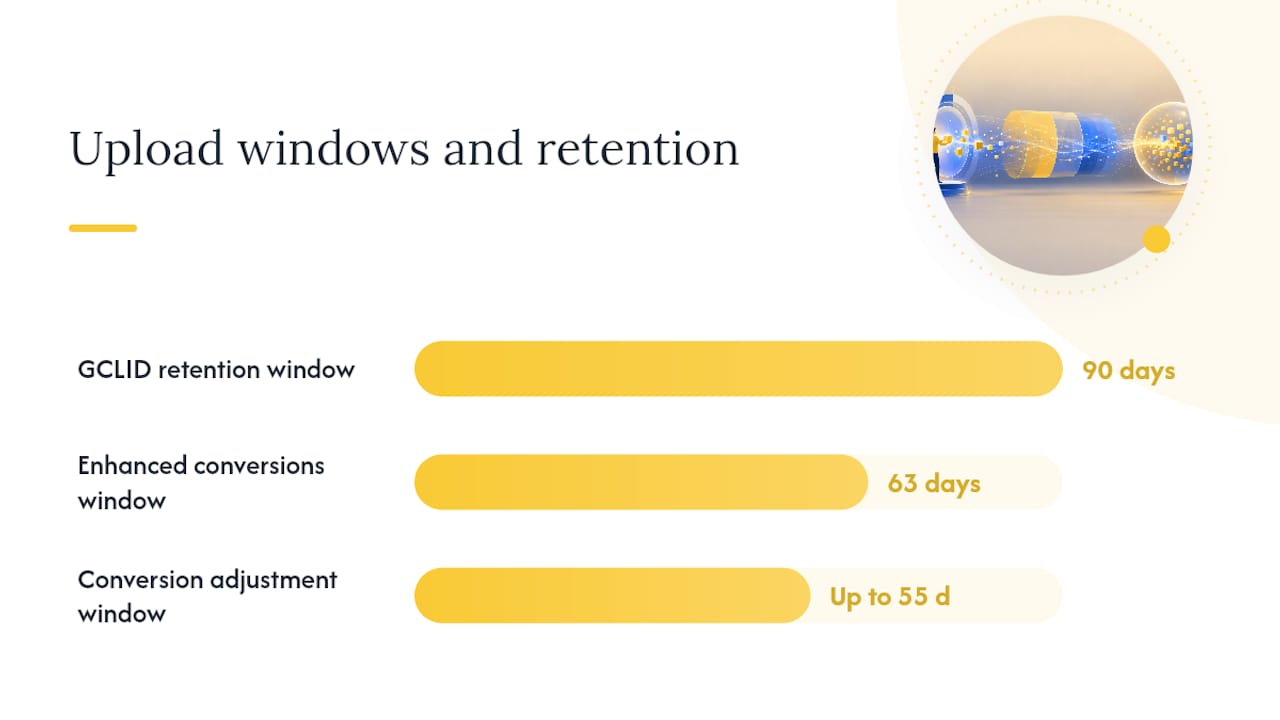
Google’s upload rules are strict on the 90-day GCLID limit. A conversion uploaded on day 91 is rejected with no recourse. Automate your upload pipeline so it runs within 24 hours of the offline event.
How to test and troubleshoot your conversion setup
Verification is not optional. A tag that fires but sends data to the wrong conversion action, or a GCLID that gets dropped before the event fires, produces clean-looking status indicators but garbage data.
Verification checklist:
- Install the Tag Assistant Chrome extension and walk through a test conversion. It shows which tags fired, in what order, and whether the GCLID was present.
- Check the Conversion status column in Google Ads (Goals > Conversions > Summary). Status options include “Recording conversions,” “No recent conversions,” and “Tag inactive.” Allow up to 48 hours after a tag change before drawing conclusions.
- Segment campaign reports by “All conv. (by conv. time)” to see conversions attributed to the actual conversion date rather than the click date. This is critical for offline imports where the conversion happens days after the click.
- Run enhanced conversions diagnostics in the Google Ads UI to see match rate percentages and identify which identifier types are matching.
Common errors and fixes:
- GCLID not found / CLICK_NOT_FOUND: The GCLID passed in the upload does not match any click in the account. Causes include uploading to the wrong account, the click being older than 90 days, or a URL redirect stripping the GCLID before the tag reads it.
- Missing Google tag: The event snippet fires but the Google tag is absent from the page. The GCLID was never stored, so no match is possible. Fix: confirm the global site tag fires on every page load, not just conversion pages.
- Mismatched conversion names: The conversion action name in your upload file does not exactly match the name in Google Ads. This is case-sensitive.
- Wrong account or MCC setup: Cross-account conversion tracking requires the conversion action to be defined at the manager account (MCC) level, not the individual account level.
For offline import validation, compare the upload file’s row count against the “Imported” count in Data Manager diagnostics. Any gap between submitted and imported rows points to a specific error code in the job summary. Fix the underlying data issue (missing GCLID, out-of-window date, malformed email hash) and re-upload the rejected rows.
How conversion settings shape Smart Bidding performance
Smart Bidding only sees conversions included in the “Conversions” column, not “All conversions.” This is the single most important setting to get right. If you mark a micro-conversion (a page scroll, a video view) as primary, Smart Bidding will optimize for that event, not for your actual business goal.
A few settings that directly affect bidding quality:
- Conversion volume: Smart Bidding needs a minimum number of conversions per month to function reliably. If your primary conversion action records fewer than 30 conversions per month, consider using a higher-funnel event as a proxy while you build volume, then switch to the downstream event once data is sufficient.
- Upload frequency for offline conversions: Daily uploads are recommended for Smart Bidding to stay current. Uploading weekly means the algorithm is bidding on week-old signals, which degrades performance in fast-moving auctions.
- Conversion values: Target ROAS bidding requires conversion values. If you are not passing dynamic values, the algorithm treats all conversions as equal and cannot differentiate a $50 order from a $5,000 one.
- Cross-account deduplication: When using MCC-level conversion actions, confirm that individual accounts are not also tracking the same event locally. Double-counting inflates conversion volume and causes Smart Bidding to underbid relative to actual performance.
Understanding how ad frequency affects conversion behavior is also worth factoring into your reporting review. A campaign showing strong conversion volume may be reaching a narrow audience repeatedly rather than expanding reach.
Privacy, security, and platform limits you must follow
Google Ads conversion tracking operates within a defined set of privacy and data-handling requirements. Ignoring them does not just create compliance risk; it produces broken uploads and rejected data.
Core requirements:
- SHA-256 hashing: All personally identifiable information (email addresses, phone numbers, names) must be hashed with SHA-256 before being sent to Google, whether through the Google tag’s enhanced conversions feature or an API upload. Google does not accept raw PII.
- Customer data terms: When you enable enhanced conversions, Google requires you to accept the customer data terms in your Google Ads account. This is a one-time step but it is a hard prerequisite.
- Upload windows: The GCLID retention limit is 90 days; the enhanced conversions PII upload window is 63 days. Conversion adjustments (value corrections or cancellations) can be submitted up to 55 days after the original conversion date.
- Modeled conversions: When Google cannot directly observe a conversion due to cookie restrictions or consent gaps, it uses statistical modeling to estimate the conversion. Modeled conversions appear in your reports alongside observed ones. You cannot distinguish them in the UI, but you can reduce their share by improving first-party data capture and match rates through enhanced conversions.
Pro Tip: Capture email and phone number together on every lead form. Passing multiple identifiers per upload record increases the probability of a successful match, even when one identifier is unavailable or formatted inconsistently. This is one of the fastest ways to improve match rates without changing your tag setup.
How Envisionmarketingagency implements conversion tracking for clients
Envisionmarketingagency follows a structured implementation workflow for every Google Ads client, starting with a tagging audit before any new tag is deployed.
Typical workflow:
- Audit existing tags and analytics: Check for duplicate tags, legacy Universal Analytics remnants, and any existing GA4 or Google tag installations. Identify which conversion actions are currently recording and whether they are set to primary or secondary correctly.
- Choose the implementation path: For most small and mid-size businesses, GTM with Conversion Linker is the right call. For clients with active CRM pipelines (Salesforce, HubSpot), the API or Data Manager path is added alongside the web tag.
- Implement the Google tag and enhanced conversions: Deploy the site-wide Google tag, configure enhanced conversions in the Google Ads UI, and set up the hashing logic either through GTM’s built-in enhanced conversions template or server-side.
- Configure conversion actions: Apply a consistent naming standard, set counting rules (every vs. one), assign values, and designate primary vs. secondary status for each action.
- Set up daily offline import pipeline: For clients with offline sales cycles, configure Data Manager connections or schedule nightly API uploads from the CRM. This keeps Smart Bidding current and within the 90-day GCLID window.
- Run verification diagnostics: Use Tag Assistant to confirm tag firing, check the Conversion status column, and review enhanced conversions match rate in diagnostics before handing off to the client.
Deliverables include a tagging implementation report, Data Manager or API configuration documentation, a conversion naming standard document, and an ongoing monthly monitoring review.
Pro Tip: Request that your CRM captures both email and phone number during lead intake, and that the form passes an order_id or unique lead ID at submission. Passing multiple identifiers alongside a unique ID reduces CLICK_NOT_FOUND warnings and makes conversion adjustments (cancellations, value updates) far more reliable downstream.
The most common tracking mistakes we fix for clients
Most conversion tracking failures are not exotic. They are the same five problems, repeated across accounts.
Inconsistent GCLID capture is the most common. A redirect between the ad’s final URL and the landing page strips the GCLID query parameter before the Google tag reads it. The fix is to audit your URL redirect chain and confirm the GCLID survives to the final destination page.
Wrong conversion counting setting is a close second. A law firm tracking contact form submissions with “Every” counting will inflate lead counts every time a returning visitor submits the form again. Set lead-type conversions to “One” per user per 30-day window.
No separation of funnel stages means Smart Bidding is optimizing on a blended signal. A client who tracks both “Form Submit” and “Qualified Lead” as primary conversions is asking the algorithm to optimize for two different things simultaneously. Pick one per campaign.
Slow or infrequent offline imports are the most damaging for accounts using Target CPA or Target ROAS. A weekly batch upload means the algorithm is working with stale data for six out of seven days. Schedule nightly Data Manager imports or API jobs.
Missing enhanced conversions setup is increasingly costly as cookie-based attribution degrades. Enabling enhanced conversions in GTM takes under an hour for most sites and immediately improves match rates. There is almost no reason to leave it off.
Quick fixes that deliver immediate improvements: sanitize and normalize CRM fields (lowercase email, E.164 phone format) before upload, enable the Conversion Linker tag in GTM if it is missing, and add “All conv. (by conv. time)” as a column to your campaign reports so you can see offline conversions attributed correctly.
Envisionmarketingagency handles your tracking setup end to end
Getting conversion tracking right the first time saves weeks of debugging and prevents Smart Bidding from optimizing on bad data. Envisionmarketingagency offers full tagging implementation, enhanced conversions configuration, and Data Manager or API setup for offline CRM imports, all with a verification report before anything goes live.
For teams navigating the April–June 2026 enhanced conversions migration, Envisionmarketingagency provides a migration plan that covers the unified setting update, legacy import deprecation, and Data Manager connection setup. When evaluating any implementation partner, ask for a sample diagnostics report, evidence of conversion upload success rates, and a clear plan for the 2026 changes.
Envisionmarketingagency has served over 550 clients since 2020, with a track record of turning correctly tagged websites into reliable lead-generation tools. If you want clean conversion data feeding your campaigns from day one, request a tag audit or an implementation proposal from the team.
Primary official docs and implementer resources
These are the canonical sources for hands-on setup and troubleshooting. Bookmark them before you start.
- Set up your web conversions (Google Ads Help): covers URL-based and code-based tracking methods. Start here to understand which method fits your site.
- Use the Google tag for conversion tracking (Google Ads Help): explains site-wide installation, event snippets, phone snippets, and the advantages of gtag.js over legacy tags.
- Set up web conversions: codeless and code paths (Google Ads Help): step-by-step for the codeless “create without code” URL method and the manual snippet method, including GTM integration.
- Guidelines for importing offline conversions (Google Ads Help): covers the 2026 unified enhanced conversions setting, Data Manager migration, upload frequency recommendations, and retention windows.
- Offline conversion imports FAQs (Google Ads Help): the 90-day GCLID limit, 63-day PII upload window, and common upload error explanations. Read this before building your upload pipeline.
- Manage offline conversions via the API (Google Ads API docs): covers the
UploadClickConversionsmethod, theClickConversionobject, hashing requirements, andorder_iddeduplication. Required reading for any developer building a CRM integration. - How Google measures interactions (Google Ads Help): explains Tag Assistant diagnostics and the 48-hour delay in conversion status updates.
Sources
- Set up your web conversions – Google Ads Help
- Guidelines for importing offline conversions – Google Ads Help
- Google Ads conversions – Set up your web conversions – Google Ads Help
- Use the Google tag for Google Ads conversion tracking – Google Ads Help
- Offline conversion imports FAQs – Google Ads Help