

GA4 measures conversions through “key events,” not the goals you remember from Universal Analytics. Before anything else, confirm your Measurement ID (the “G-” code) is actually installed on every page, then open DebugView to watch events arrive in real time. Only after that verification should you mark events as key events, and remember GA4 caps you at 30 per standard property, with the option to import them into Google Ads for bidding.
TL;DR:
- Only select and track up to 30 key events in GA4 that directly reflect valuable business outcomes, avoiding excessive micro-interactions.
- Verify the correct setup of your GA4 property, data stream, and tag installation in a staging environment before launching campaigns to prevent data issues.
- Use Google Tag Manager for managing multiple events and parameters to prevent duplication and streamline updates, following strict naming and parameter registration rules.
- Always confirm event firing and data accuracy with DebugView and Realtime reports before importing conversions into Google Ads or relying on the data for bidding decisions.
- Run regular audits and checks—such as duplicate tags, consent blocking, and proper linking—to maintain tracking accuracy and prevent silent data failures.
Table of Contents
- What Is a GA4 Conversion (Key Event) and Why It Matters
- Setting Up GA4 Before You Track a Single Conversion
- gtag.js vs Google Tag Manager: Which Should You Use for Events?
- Marking Key Events and Importing Them Into Google Ads
- How Do You Verify Conversions Are Actually Tracking?
- The Audit Checklist That Keeps GA4 Tracking Accurate
- What We’ve Learned Fixing Broken GA4 Setups
- Why DebugView-First Beats “Set It and Hope”
- Get Your GA4 Setup Audited by a digital marketing agency
- Where to Verify These Setup Details Yourself
- Sources
What Is a GA4 Conversion (Key Event) and Why It Matters
Universal Analytics let you define a handful of static “goals” (a destination URL, a session duration, an event count) and call it done. GA4 works differently: everything is an event first, and you decide which events matter enough to become key events, the term GA4 now uses in place of “conversion” across both Analytics and Ads. That shift sounds cosmetic. It isn’t. It forces you to think about user actions as a continuous stream rather than a fixed checklist, and it means your reporting is only as good as the events you choose to track.
GA4 organizes events into four buckets, and knowing which is which saves hours of confusion later:
- Automatically collected events — things GA4 logs the moment the tag fires, like
first_visitorsession_start. - Enhanced measurement events — toggled on in your data stream settings, covering scrolls, outbound clicks, site search, and video engagement.
- Recommended events — Google-defined names like
purchaseorgenerate_leadwith pre-built parameter structures. - Custom events — anything specific to your business that doesn’t fit the above, named and structured by you.
Standard GA4 properties allow up to 30 key events, while GA4 360 properties get 50. That limit matters more than it sounds. Marketers who mark every button click as a key event end up diluting the metric until it stops meaning anything. The smarter approach, backed by analytics practitioners rethinking the migration from Universal Analytics, is to pick events that map to actual business outcomes: a completed quote request, a booked call, a finished checkout, not every micro-interaction on the page.
Setting Up GA4 Before You Track a Single Conversion
Before you touch key events, the underlying property and tag need to be correct. Skip this step and you’ll spend weeks debugging phantom data issues that trace back to a missing data stream or a tag installed twice.
- Create the GA4 property and a web data stream. Inside the Analytics admin panel, add a new data stream for your website and grab the Measurement ID, the string starting with “G” followed by digits.
- Install the Google tag. You have three realistic options: a CMS plugin (fine for simple WordPress sites), a direct gtag.js snippet pasted into your site’s header, or Google Tag Manager. GTM is the better long-term choice for most businesses because it lets marketers manage and adjust event tags without asking a developer to touch code every time, according to Google’s own tag manager guidance.
- Enable enhanced measurement. In the data stream settings, flip this on so GA4 automatically starts logging scrolls, outbound clicks, and file downloads without any extra tagging work.
- Confirm default events are firing in Realtime. Open the Realtime report and browse your own site in another tab. You should see
page_viewand other automatic events appear within seconds. - Check account permissions for Google Ads linking. You’ll need Editor or Administrator access in both GA4 and Google Ads to complete that link later, so confirm access now rather than discovering the gap mid-campaign.
Pro Tip: Don’t wait until your campaign is live to check Ads linking permissions. Half the “why won’t my conversions import” support tickets we see trace back to someone lacking admin rights in one of the two accounts, discovered days after launch.
Standard GA4 reports can take 24 to 48 hours to populate fully, even though Realtime shows activity within seconds. Budget that delay into your launch timeline so you’re not panicking over “missing” data that’s simply still processing.
gtag.js vs Google Tag Manager: Which Should You Use for Events?
The direct gtag.js snippet works fine if you’re comfortable editing site code and only need a handful of straightforward events. It’s fast, it’s transparent, and there’s no extra tool to learn. The pattern looks like this in practice:
gtag('event', 'generate_lead', { currency: 'USD', value: 50.00 }); Google Tag Manager becomes the better choice the moment you have more than a couple of events, multiple people managing tracking, or a marketing team that shouldn’t need a developer’s help to add a new button click. GTM centralizes every tag in one dashboard, and changes go live through a published container rather than a code deployment. That’s the core reason Google recommends GTM for most ongoing tracking work: it separates “someone needs to edit tracking” from “someone needs to edit the codebase.”
Whichever route you choose, event structure matters as much as the tool. A few rules keep your data usable months from now instead of turning into a mess:
- Use snake_case naming (
add_to_cart, notAddToCartoradd to cart) to match Google’s own conventions and avoid parsing issues. - Never fire the same event twice from two different tags. Duplicate events are the single most common cause of inflated conversion counts.
- Attach meaningful parameters, not decoration. For a purchase event, that means
transaction_id,value,currency, and anitemsarray, the fields GA4’s event documentation actually expects for ecommerce reporting to work correctly. - Match your recommended event names exactly when one exists (
generate_lead,sign_up,purchase) rather than inventing a custom equivalent that fragments your reporting.
Custom parameters need one more step before they’re useful. Anything beyond GA4’s built-in parameters has to be registered as a custom dimension or metric in Admin, and that registration can take up to 48 hours before values show up in standard reports. The event itself gets collected immediately. The parameter values just stay invisible in your reports until you register them and wait out that window.
Pro Tip: Register your custom parameters the same day you launch the event, not the day you notice the report field is blank. That 48-hour clock only starts once you’ve actually created the custom dimension.
Marking Key Events and Importing Them Into Google Ads
Once an event is firing reliably, and only then, go into Admin → Events and toggle it on as a key event. This step doesn’t change how the event fires. It changes how GA4 reports on it, surfacing it in conversion-specific reports and making it eligible for import into Google Ads.
From there, connecting a key event to your advertising account takes a specific sequence:
- Link GA4 to Google Ads under Admin → Product Links, using an account with Editor access on both sides.
- Go to Google Ads → Goals → Conversions and select “Import” to pull in your GA4 key events as trackable conversions.
- Choose your counting method (once per session versus every occurrence) based on whether repeat actions from the same user should count multiple times.
- Set attribution settings to decide whether Ads counts paid and organic contributions or paid traffic only.
One detail trips up almost everyone the first time: Google Ads may label an imported GA4 conversion as a “secondary” conversion rather than treating it as a primary bidding signal. That’s intentional. It prevents double counting when you already have a native Ads conversion tracking the same action, but it also means the imported conversion won’t influence Smart Bidding until you manually promote it to primary. If your goal is to actually optimize campaigns around that key event, check this setting explicitly. If you’re running click-to-call campaigns, this is also where call tracking integration tends to matter, since phone conversions often need a separate event path into GA4 before they can be imported at all.
How Do You Verify Conversions Are Actually Tracking?
Never trust a new event until DebugView has confirmed it. This is the step most marketers skip, and it’s the one that saves the most pain later.
- Open DebugView and turn on debug mode using the GA4 debugger Chrome extension or a
?debug_mode=trueURL parameter in GTM’s preview mode. Walk through the action you’re tracking and watch the event appear, along with every parameter attached to it. - Cross-check in Realtime. Once DebugView confirms the event fires correctly, switch to the Realtime report and confirm it shows up there too, without debug mode enabled.
- Run a test import into Google Ads. Trigger a real conversion event and confirm it appears in the Ads conversions dashboard, even if the count is still low.
- Wait 24 to 48 hours and check standard reports. This is the point where parameter data and full reporting become reliable, not before.
Most tracking failures trace back to a short list of causes: a tag firing twice because it’s installed both directly and through GTM, a consent management platform blocking the tag before a user accepts cookies, an event tag placed on the wrong trigger, or a time zone mismatch between your GA4 property settings and your Google Ads account that throws off day-boundary attribution.
Pro Tip: If an event shows up perfectly in DebugView but never reaches Realtime, check your consent settings first. A CMP silently blocking analytics tags is the most common gap between “it works in testing” and “it doesn’t work live.”
The Audit Checklist That Keeps GA4 Tracking Accurate
Run this before every major campaign launch and after any site or CMS update, because a redesign or plugin change is the single most common reason clean tracking breaks overnight.
- Confirm every event name is unique and consistent across gtag.js and GTM implementations.
- Check that only one tag fires per page load for each event, no duplicates.
- Register every custom parameter you actually plan to report on, and skip the ones you won’t use.
- Set up internal traffic filters so your own team’s visits don’t inflate conversion counts.
- Review data retention settings and Google signals status, since both affect how long user-level data stays queryable.
- Confirm attribution settings in Ads match your actual reporting expectations (paid versus paid-plus-organic).
For most standard marketing campaigns, “once per event” counting combined with data-driven attribution is the sensible default. It avoids overcounting repeat actions while still crediting the touchpoints that actually influenced a conversion.
| Frequency | What to check |
|---|---|
| Daily | Realtime report for obvious drops or spikes in key event volume |
| Weekly | DebugView spot-check on any newly added or edited event |
| After code/CMS changes | Full tag audit: duplicate tags, consent blocking, event firing on the right trigger |
What We’ve Learned Fixing Broken GA4 Setups
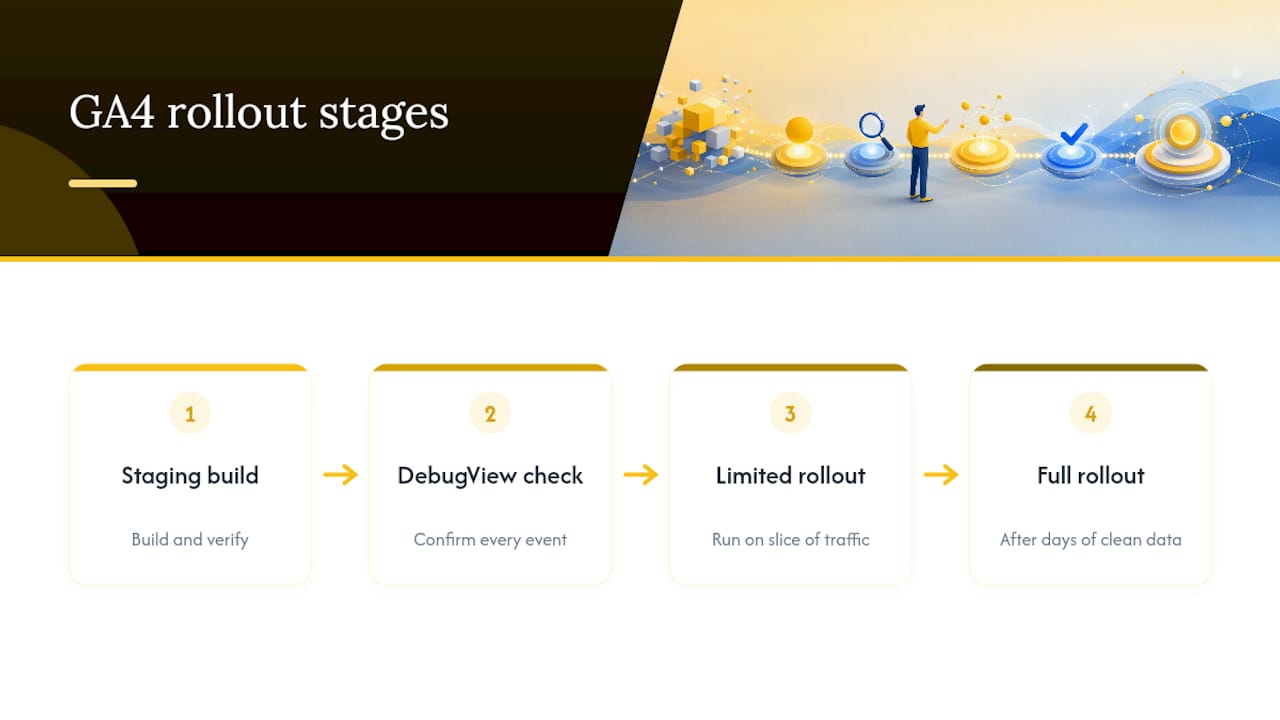
Most GA4 tracking issues we encounter come from teams that skipped verification and went straight to production. A rollout that works looks like this: build and verify in a staging environment first, confirm every event in DebugView, push to a limited slice of production traffic, then roll out fully once a few days of clean data confirm nothing is duplicating or dropping.
The recurring fixes are almost always the same three things. Consolidate event logic inside GTM instead of spreading it across gtag.js snippets and template code, since split logic is what causes duplicate firing in the first place. Register only the parameters a report will actually use, since untouched custom dimensions just clutter the admin panel. And link GA4 to both Google Ads and Search Console early, because half the “why is this conversion missing” questions we get turn out to be a linking step someone assumed was already done.
Why DebugView-First Beats “Set It and Hope”
Most GA4 guides treat verification as an afterthought, a quick Realtime glance after the real work of building tags is done. That ordering is backwards. The build itself is the easy part. What actually determines whether your conversion data means anything six months from now is whether you caught the duplicate tag, the blocked consent signal, or the mismatched parameter before it ever touched a campaign decision.
The conventional advice to “just set up your key events and check back later” ignores how unforgiving GA4 is about silent failures. An event can fire, look fine in Realtime, and still be feeding your Google Ads bidding algorithm garbage because a parameter never got registered. DebugView is the only step in the entire process that shows you the actual payload before it becomes a number someone makes a budget decision on.
If you take one thing from this playbook, prioritize verification over volume. Fewer, cleaner key events beat thirty half-tested ones every time. Marketers who treat DebugView as optional are the ones who discover, three weeks into a campaign, that their “conversions” were never real.
— Marcus
Get Your GA4 Setup Audited by a digital marketing agency
A specialized agency is an alternative to guessing whether your tracking is right: instead of hoping your GA4 setup works, they audit the actual event payloads in DebugView, fix duplicate tags and consent gaps, and provide a Google Ads import that feeds your bidding decisions with clean data.

Our team builds GA4 event structures inside Google Tag Manager, registers the right custom parameters from day one, and connects key events to Google Ads so your campaigns optimize around real conversions instead of secondary noise. This work usually happens alongside a broader custom web development project or a managed SEO engagement, since tracking accuracy only matters if the site and campaigns built on top of it are solid too. If your conversion numbers have never quite added up, request a GA4 audit and we’ll show you exactly where the data is breaking before you spend another dollar on ads pointed at bad tracking.
Where to Verify These Setup Details Yourself
For implementation specifics beyond this guide, go straight to the source documentation:
- Google’s event setup docs cover exact code patterns and event type definitions.
- Event parameter documentation lists registration steps and reporting delays.
- Analytics Help’s Ads linking guide explains conversion import permissions and secondary conversion rules.
- GTM’s install guide walks through container setup and publishing workflow.
Sources
- Set up events | Google Analytics dev docs
- Set up event parameters | Google Analytics dev docs
- Create Google Ads conversions based on Google Analytics key events – Analytics Help